Backups, and how to get your data back
A full copy of the database every night in your own R2 bucket, kept forever, downloadable as plain SQL — and the two ways back when something goes wrong.
Updated
2 min read
Everything in HQ is one SQLite database. It is copied every night to object storage you control, as a plain SQL dump you can read with any tool, and nothing in the app ever deletes a copy. This page is where those copies are, and what to do on the day you need one.
Where the setting lives
Settings → Backups.
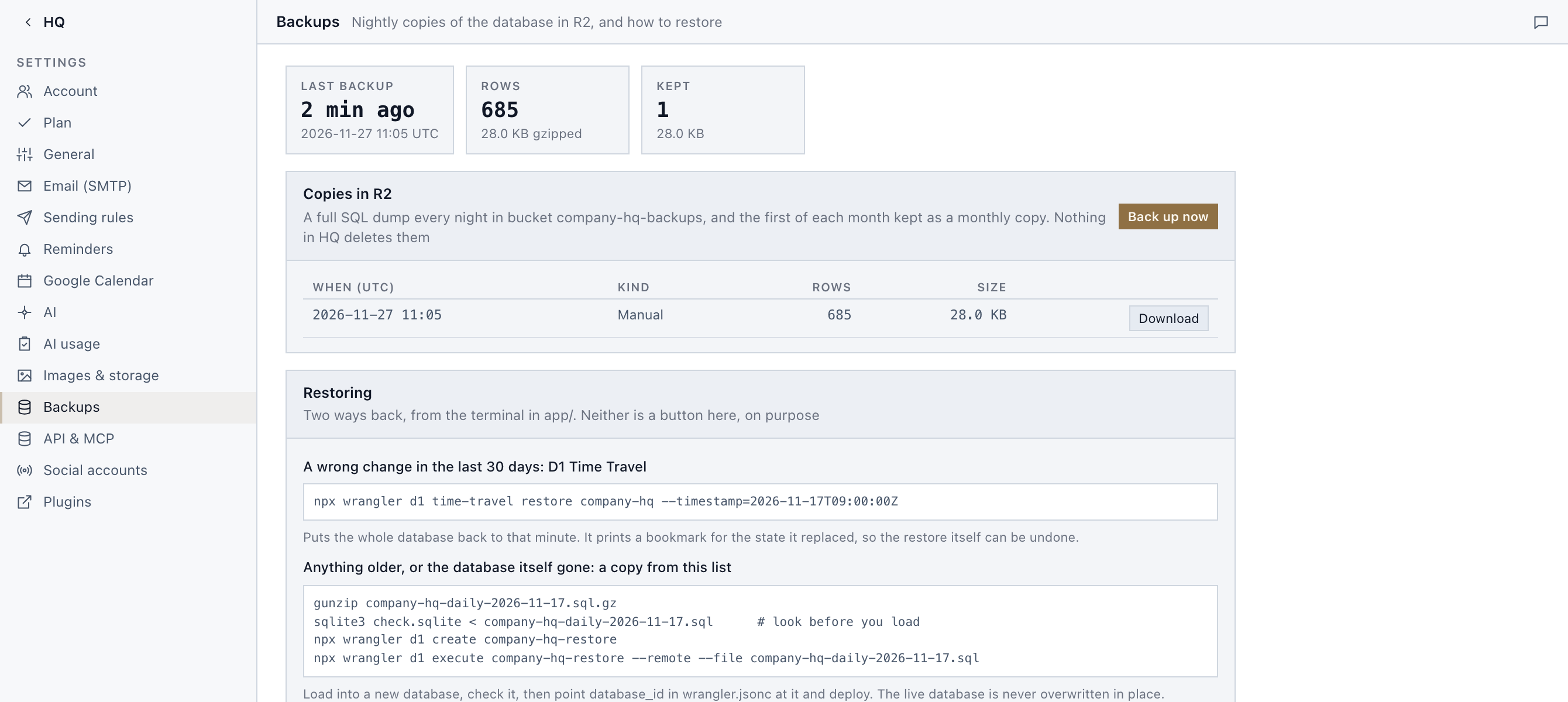
| When | Every night at 00:10 UTC, plus the first of each month kept as a monthly copy |
| Where | The R2 bucket company-hq-backups — your own Cloudflare account |
| What | A full .sql.gz dump of every table, not a proprietary format |
| Kept | All of them. There is no delete button here, on purpose |
Back up now makes one immediately — worth pressing before a migration, a bulk edit in the spreadsheet view, or anything you are not sure about.
Check it is actually running
Two warnings appear at the top of this screen when it is not:
- "The BACKUPS bucket is not bound" — a self-hosted Worker without the bucket. Make it once with
npx wrangler r2 bucket create company-hq-backupsand deploy again. - "No backup in the last 36 hours" — the nightly job has not run. Press Back up now, and check the Worker's cron trigger.
A backup you have never checked is a guess. Download one now and open it: it should be readable SQL with your own rows in it.
Getting back
Neither way is a button in the app. Restoring a database is not something to do by accident, and both ways leave the live database untouched until you point at the new one yourself.
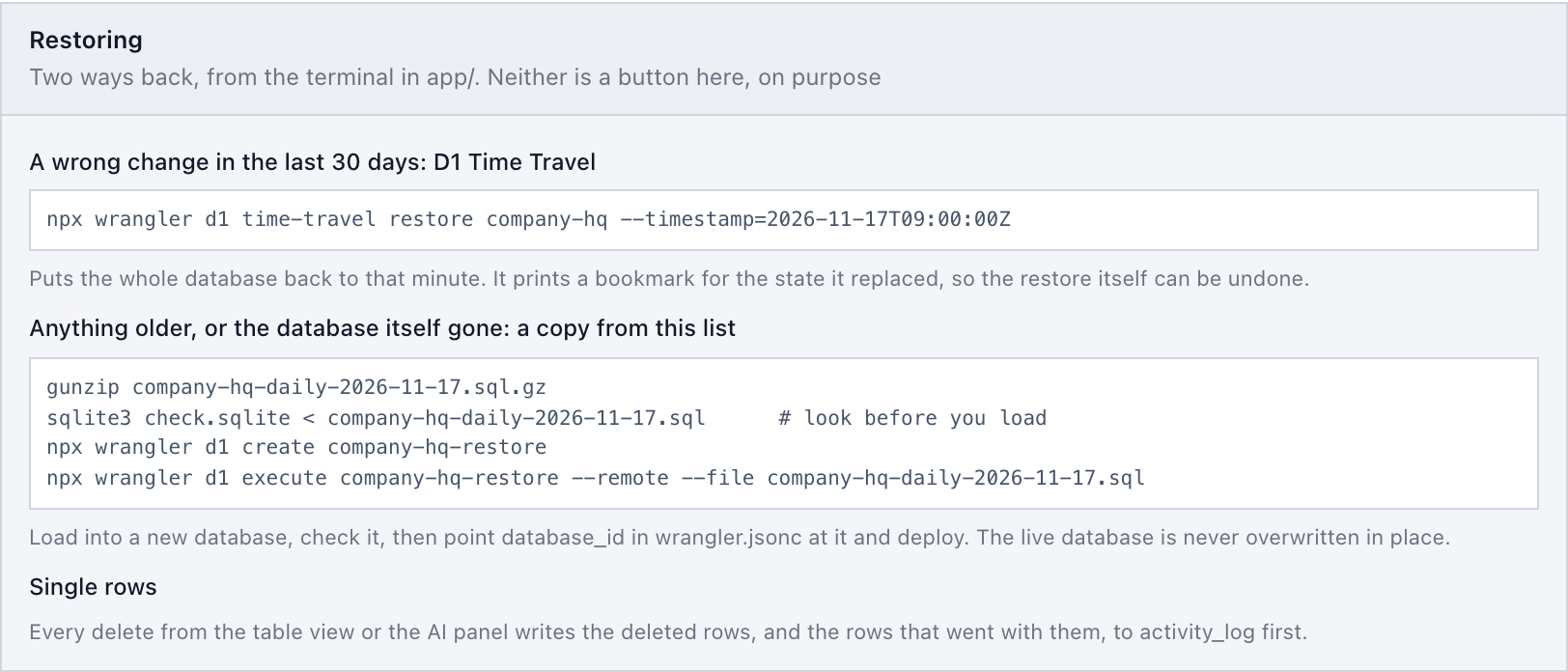
A wrong change in the last 30 days — D1 Time Travel. Cloudflare keeps its own point-in-time history of the database. Put the whole thing back to the minute before:
npx wrangler d1 time-travel restore company-hq --timestamp=2026-11-17T09:00:00Z
It prints a bookmark for the state it replaced, so the restore itself can be undone.
Anything older, or the database gone — a copy from the list. Download the .sql.gz, look at it,
load it into a new database, and only then point the app at it. The exact four commands are
printed on the Restoring card in the screenshot above: unzip the dump, open it locally with
sqlite3 to check it, create a second D1 database, and load the dump into that one.
Then change database_id in wrangler.jsonc to the new database and deploy. The live database is
never overwritten in place, so a restore that turns out wrong costs you nothing.
Single rows: you usually do not need a backup
Deleting is the common accident, and it is already covered without going near R2. Every delete from the spreadsheet view or the AI panel writes the deleted rows, and the rows that went with them, into the activity log first. The AI panel always waits for Apply before a delete, whatever your other settings say, and shows every record that goes with it.
So the order to reach for is: the activity log for a row or two, Time Travel for a bad afternoon, a nightly copy for anything structural or older than a month.
It is your data, not ours
- The bucket is in your Cloudflare account. HQ writes to it and lists it; it cannot empty it.
- The dumps are plain SQL. Any SQLite tool opens them, with or without HQ.
- Download whenever you like — there is no export request and nothing to wait for.