Connect HQNote to Claude
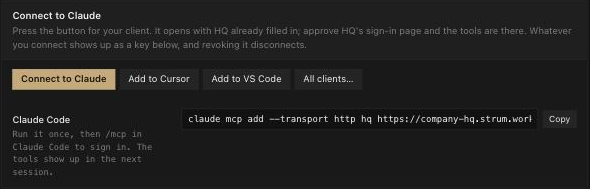
One button adds HQNote to Claude, Claude Code, Cursor or VS Code. Approve the sign-in page and the tools are there — no key, no config file.
Updated
2 min read
Claude can read your HQ and write to it: research a launch and save the brief as a note, put a follow-up on today's list, tell you who is waiting on a reply. Connecting takes one click and one approval. There is nothing to copy and no key to keep.
The button
Two places have it:
- In the app: Settings → API & MCP → Connect to Claude.
- On this site: hqnote.app/connect-mcp.
Claude — web, desktop and phone
- Press Connect to Claude. Claude opens its own Add custom connector dialog with the name and address already filled in.
- Press Add, then Connect.
- HQ's sign-in page opens. Choose Read & write or Read only and approve.
That's it. In a new chat, ask Claude something about your company and it calls HQ's tools. On the phone, the connector is already there: it follows your Claude account.
Adding it for a whole Claude organization? The owner uses the admin dialog link on the connect page instead.
Claude Code
Copy the line from Settings (or the connect page) and run it once:
claude mcp add --transport http hq https://mcp.hqnote.app
Then type /mcp in Claude Code, pick hq and approve the sign-in page in your browser. The
tools appear as mcp__hq__* in your next session.
Cursor and VS Code
Press Add to Cursor or Add to VS Code. The editor opens and adds HQ to its MCP servers; it asks you to sign in the first time a tool is used.
What you approve
The sign-in page is HQ's own, opened in the browser where you're signed in to HQ. If it says the browser isn't signed in, open HQ there, sign in, and reload the page.
- Read only gets the tools that read:
get_context,describe_schema,search_records,get_record,run_sql,goal_progress. - Read & write also gets the ones that write — leads, conversations, tasks, stages, records, goal entries, post and channel metrics. Nothing deletes.
Seeing and disconnecting
Whatever you connect shows up under Settings → API & MCP → Keys, named after the client, with its last call and call count. Everything it writes is in the activity log under that name. Revoke disconnects it on its next call; what it already wrote stays.
For a script or a service that can't sign in through a browser, make a key instead: Let a script read and write HQ.