Task alerts that actually go off
Alerts work like a calendar app's — on the task, with a second one if you want. What has to be true for one to reach you, and what happens to the ones you miss.
Updated
3 min read
A task in HQ can alert you the way a calendar event does: at the time, or a set number of minutes, hours or days before. Alerts are set on the task, and this page is the one setting screen behind them — plus the honest answer to "will it actually reach me?".
Where the setting lives
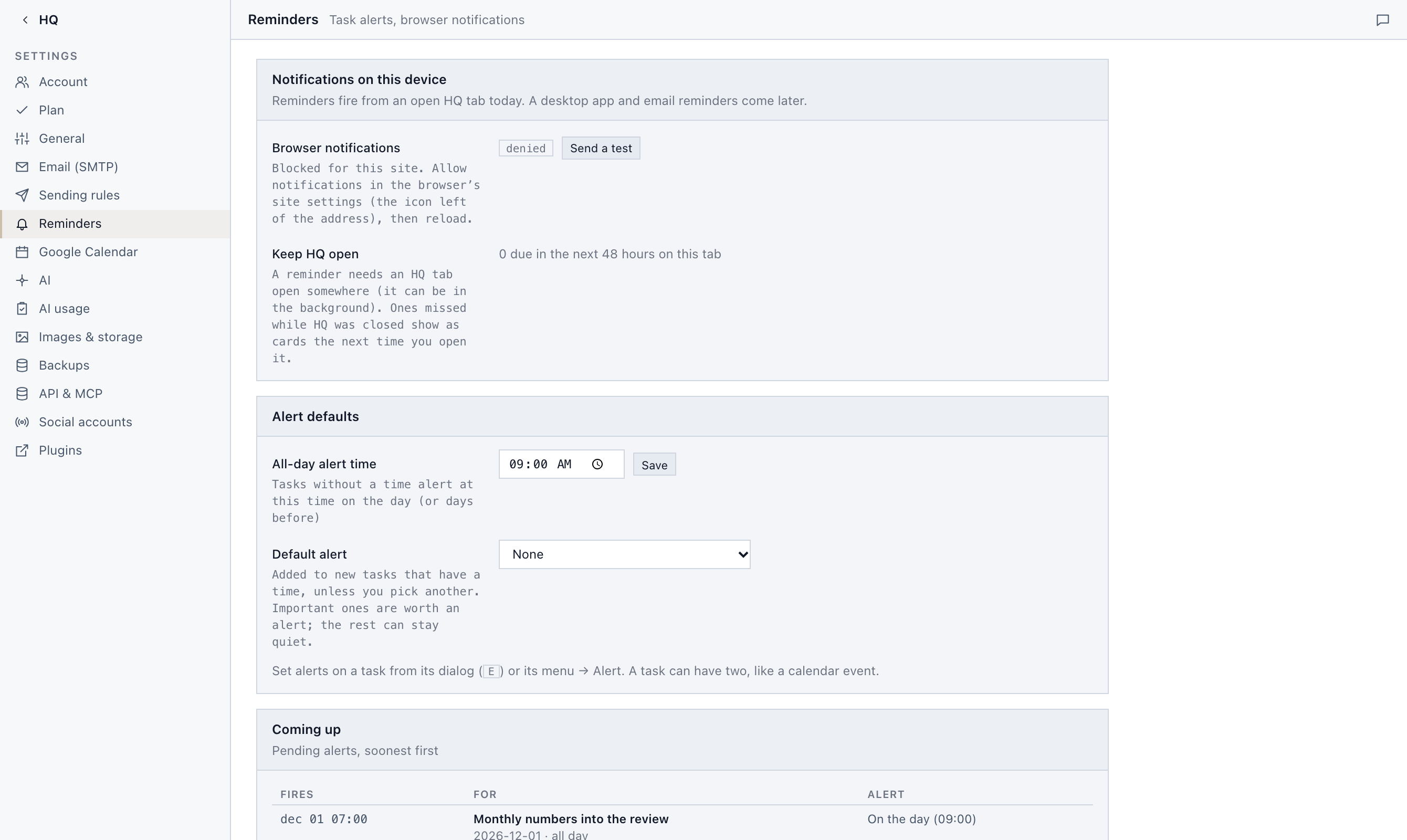
Settings → Reminders.
First: let the browser show them
Browser notifications has one of four states, and the line under it tells you which:
| State | What it means |
|---|---|
| allowed | Reminders arrive as system notifications, plus a card inside HQ |
| not asked yet | Press the button to ask. Without it, reminders only appear inside an open HQ tab |
| denied | Blocked for this site. Allow notifications in the browser's own site settings — the icon to the left of the address — then reload |
| unsupported | This browser cannot show them; the in-app card still works |
Send a test fires one right now. If nothing appears, the permission is not really granted, or your operating system is suppressing notifications (macOS Focus, Windows Focus assist) — check there before suspecting HQ.
The one real limitation
A reminder needs an HQ tab open somewhere. It can be in the background, on any device, but the alert is delivered by the app itself, not by a server pushing to your phone.
- Several tabs open? The alert fires once: the first tab to claim it wins.
- HQ closed when the alert was due? It is not lost — it shows as a card the next time you open HQ.
- Email and push reminders are not built yet. The delivery path is there (the same claim mechanism), so they can be added without changing how alerts are set.
The honest summary: for an alert that must reach you with HQ closed, put it in your phone's calendar as well — or turn on the two-way Google Calendar sync (Settings → Google Calendar) and let the calendar app on your phone alert you.
Alert defaults
All-day alert time — 09:00. A task with a date but no time has no natural moment to fire, so it uses this. "One day before" on an all-day task means 09:00 the day before.
Default alert. What a new timed task gets unless you pick something else. None is a reasonable default: an alert on everything is an alert on nothing. Set it to 10 minutes before if most of what you put in HQ is meetings.
Setting an alert on a task
Open the task (E) or its row menu (.) → Alert.
- Timed tasks: at the time, or 5, 10, 15, 30 minutes · 1, 2 hours · 1, 2 days · 1 week before.
- All-day tasks: on the day, or 1, 2 days · 1 week before — all at the all-day time above.
- A task can hold two alerts, like a calendar event: one a day before, one at the time.
- A task with an alert shows a 🔔 on its row.
Move the task's date and the alert moves with it. An alert whose moment has already passed will not fire retroactively if you re-add it.
Coming up, and what went off
The bottom of this screen is the audit trail — worth a look when you suspect something did not fire.

Coming up is every pending alert, soonest first. Delivered is every one that went off and where it showed. If a reminder is in Coming up with a time in the past, it means no HQ tab was open to claim it; open HQ and it appears as a card.