Send email from your own address
Point HQ at your mailbox's SMTP server so sequences, replies and anything you compose go out as you. Google Workspace, step by step.
Updated
6 min read
HQ sends mail through your own mailbox, not through a service of ours. You give it the server, the address and an app password once; after that every letter — a sequence step, a reply from the Inbox, anything you compose — leaves from that address, lands in the other person's inbox with your domain on it, and comes back to you when they answer.
This page sets up a Google Workspace mailbox (you@yourcompany.com). Personal Gmail, iCloud,
Outlook, Fastmail, Naver, Zoho, Resend, Postmark, SendGrid, Mailgun and SES work the same way —
the last section lists what changes.
Where the setting lives
Open Settings → Email (SMTP). Everything about sending is on this one screen: the accounts you send from, the guide for your provider, and every letter that has gone out with its status.
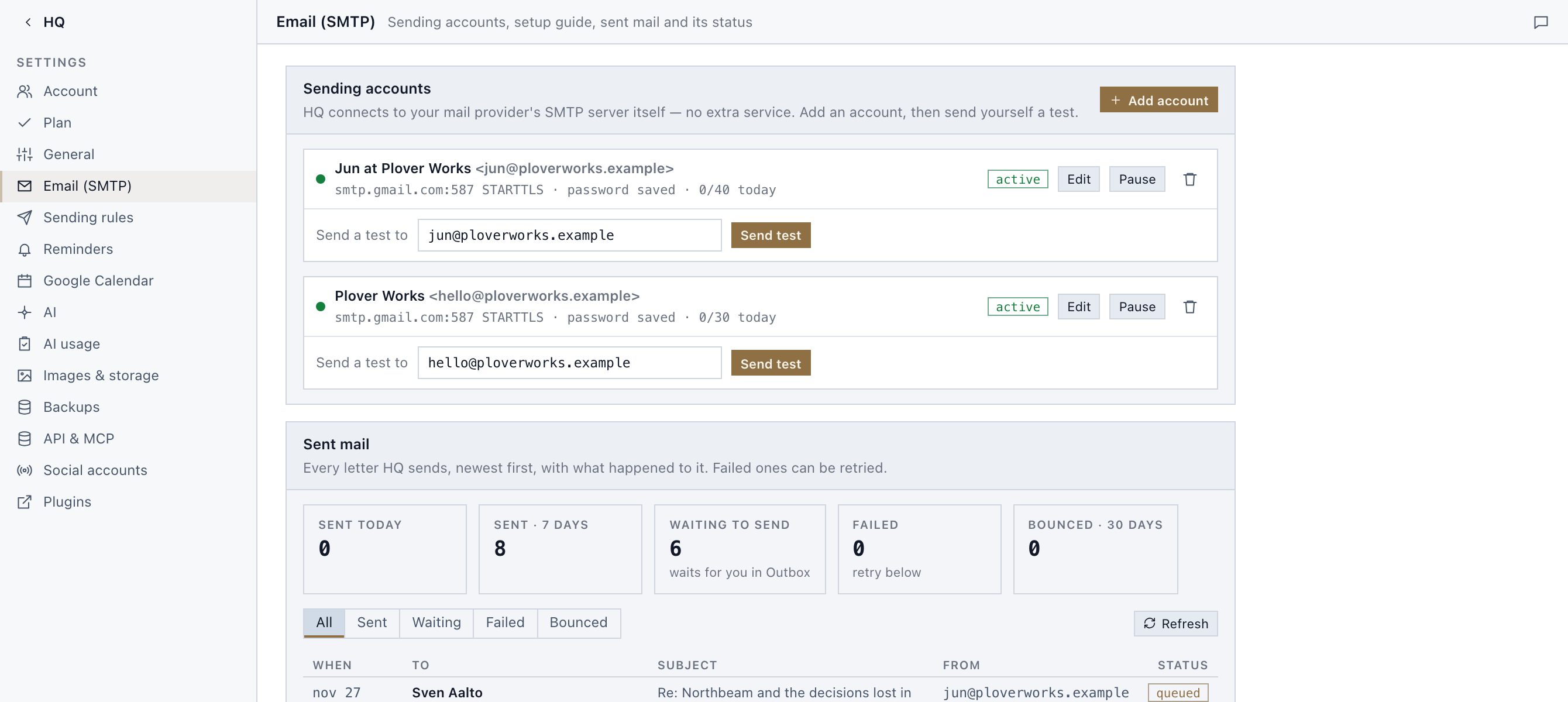
You can reach it three ways:
- the sidebar in Settings, Email (SMTP)
- the web app directly, at
/settings/email - on iPhone, Settings → Email
One HQ can hold several sending accounts — a personal address for replies, a separate domain for cold outreach — and each sequence picks the one it sends from.
What you need first
| Needed | Why |
|---|---|
| A Google Workspace mailbox you can sign into | HQ signs in as that mailbox to send |
| 2-Step Verification on that account | Google only issues app passwords once it is on |
| An admin, if 2-Step Verification is blocked | Admin console → Security → Authentication decides whether you may turn it on |
You do not need a sending service, an API key, or a DNS change to send your first letter. DNS matters before you start cold outreach — see Before you send sales mail.
Make an app password in Google
Your normal Google password will not work: Google refuses plain password sign-in for SMTP. Instead it gives you a 16-letter app password that only this one program uses, and that you can revoke without changing anything else.
- Sign in as the mailbox that will send.
- Turn on 2-Step Verification: Google Account → Security.
- Open Google → App passwords.
- Type a name you will recognise later —
HQ— and press Create. - Copy the 16 letters Google shows. Spaces do not matter; HQ ignores them.
App passwords is not in the menu. Either 2-Step Verification is off for this account, or a Workspace admin has not allowed it. The admin turns it on under Admin console → Security → Authentication → 2-Step Verification, for your organisational unit.
Google shows the password once. If you lose it, delete that app password and make another; nothing else about the mailbox changes.
Add the account in HQ
In Settings → Email (SMTP), press Add account, and pick Google Workspace in the Provider box. HQ fills in the server, the port and the security mode for you, and prints the steps for that provider next to the form:
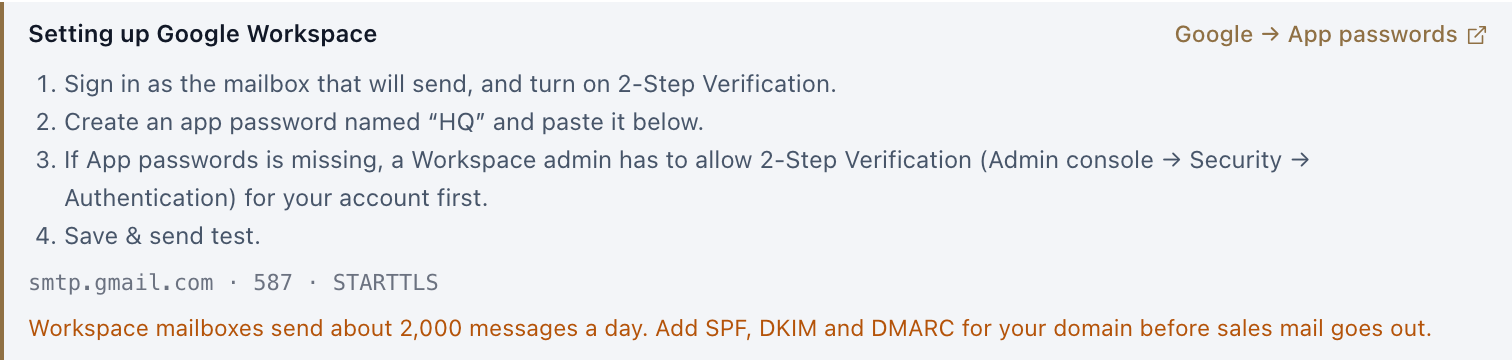
Then fill in the rest. For Google Workspace, what goes in each box:
| Field | What to put | Notes |
|---|---|---|
| Your name | Jun at Plover Works |
What recipients see as the sender |
| Email address | you@yourcompany.com |
The address mail is sent from |
| SMTP server | smtp.gmail.com · 587 |
Filled in by the provider picker |
| Security | STARTTLS · 587 | Port 465 pairs with TLS. Port 25 is blocked on Cloudflare and will never work |
| Username | you@yourcompany.com |
The full address, not just the part before the @ |
| App password | the 16 letters from Google | Not your Google password |
| Reply-to | (empty) | Only if replies should go somewhere else |
| Daily cap | 40 |
The most this account may send in a day — start low |
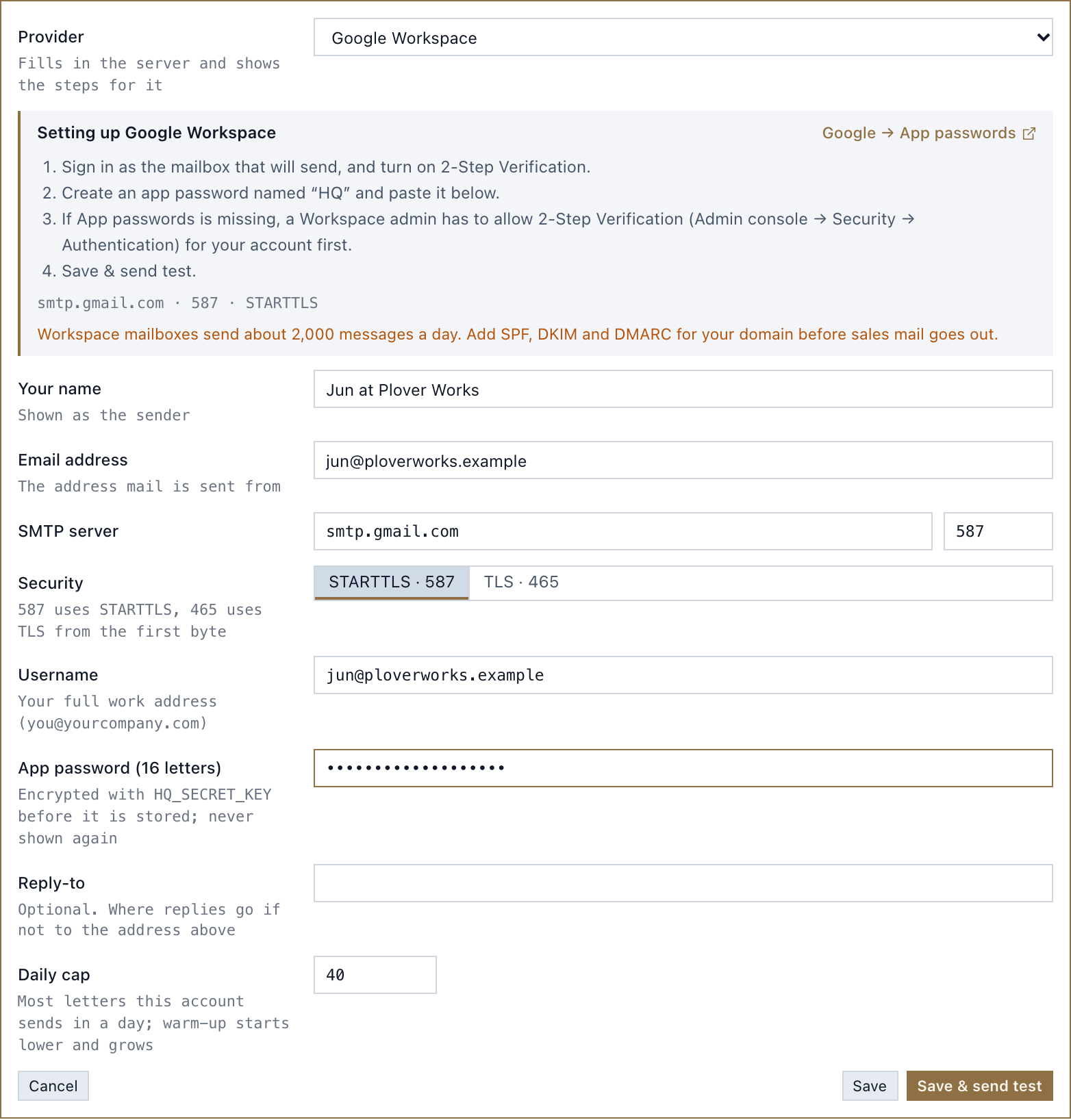
About that password. HQ encrypts it with AES-GCM under a key held outside the database
(HQ_SECRET_KEY) before writing it, and never shows it again — the box reads ●●●●●● saved — type to replace when you come back to edit. If the screen warns that HQ_SECRET_KEY is not set, you are
on a self-hosted Worker without that secret; set it before saving an account.
Send yourself a test
Press Save & send test. HQ opens a real SMTP connection to Google, signs in as your mailbox and sends one letter to your own address.

Green, and the row says active with password saved — that is the whole setup. Open the inbox
you sent to and check that the letter really arrived; look in Spam the first time, since the
first letter from a new sender often lands there.
If it fails, HQ prints the server's own answer, explains it in one line, and keeps the raw conversation under What the server said. The common ones:
| What the server says | What it means |
|---|---|
535, 5.7.8, authentication failed |
The username or password was refused. Use the app password, not your Google password, and the full address as the username |
5.7.139, basic authentication is disabled |
A Microsoft mailbox that no longer allows password sign-in — ask the admin for Authenticated SMTP, or use a sending service |
| timed out, connection refused | Wrong server or port. Try the other pair: 587 with STARTTLS, 465 with TLS |
| TLS / handshake failed | The port and the security mode do not match each other |
553, 550 5.7.1, sender not owned |
The server will not send from that address. Use the mailbox's own address |
A test can be sent again at any time from the account's row — to your own address, or to a second address elsewhere to see how the letter arrives.
Before you send sales mail
A mailbox that has never sent bulk mail has no reputation, and Google counts how fast you start. Two things to do before the first sequence goes out:
Add SPF, DKIM and DMARC for your domain. Without them your letters are unsigned, and inbox providers put unsigned bulk mail in Spam. Google publishes the three records to add; they go on the domain, once.
Let HQ warm the address up. Warm-up, the sending window, the gap between letters and the signature live under Sales → Accounts, one row per sending address:
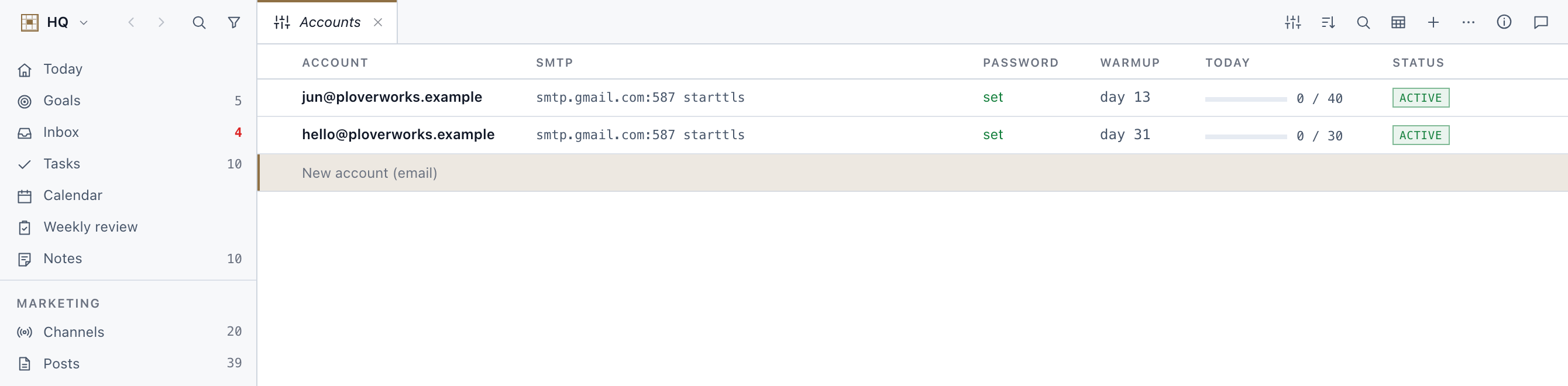
A Workspace mailbox will carry about 2,000 messages a day before Google stops it, but that is a ceiling, not a target. Start at a handful a day and let the warm-up raise it.
What happens after a letter is queued
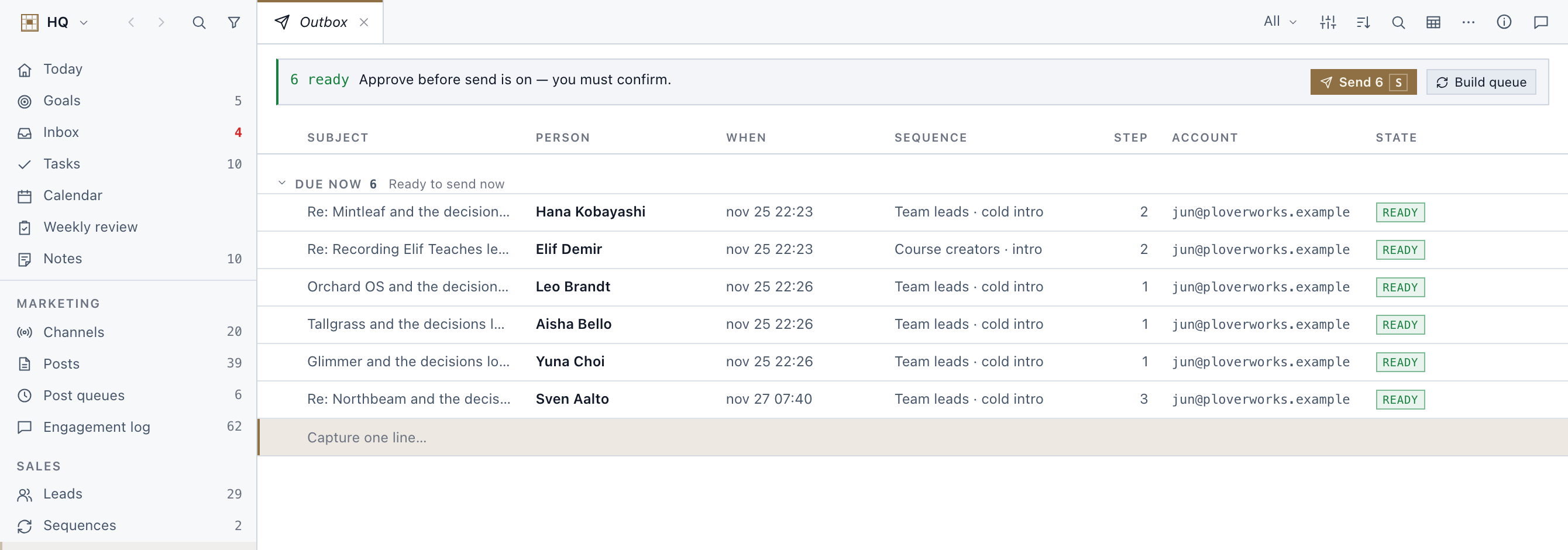
Sequence mail is queued, then sent every five minutes inside each account's window, cap and warm-up. With Approve before send on (Settings → Sending rules), queued letters wait for you in Outbox until you press S:
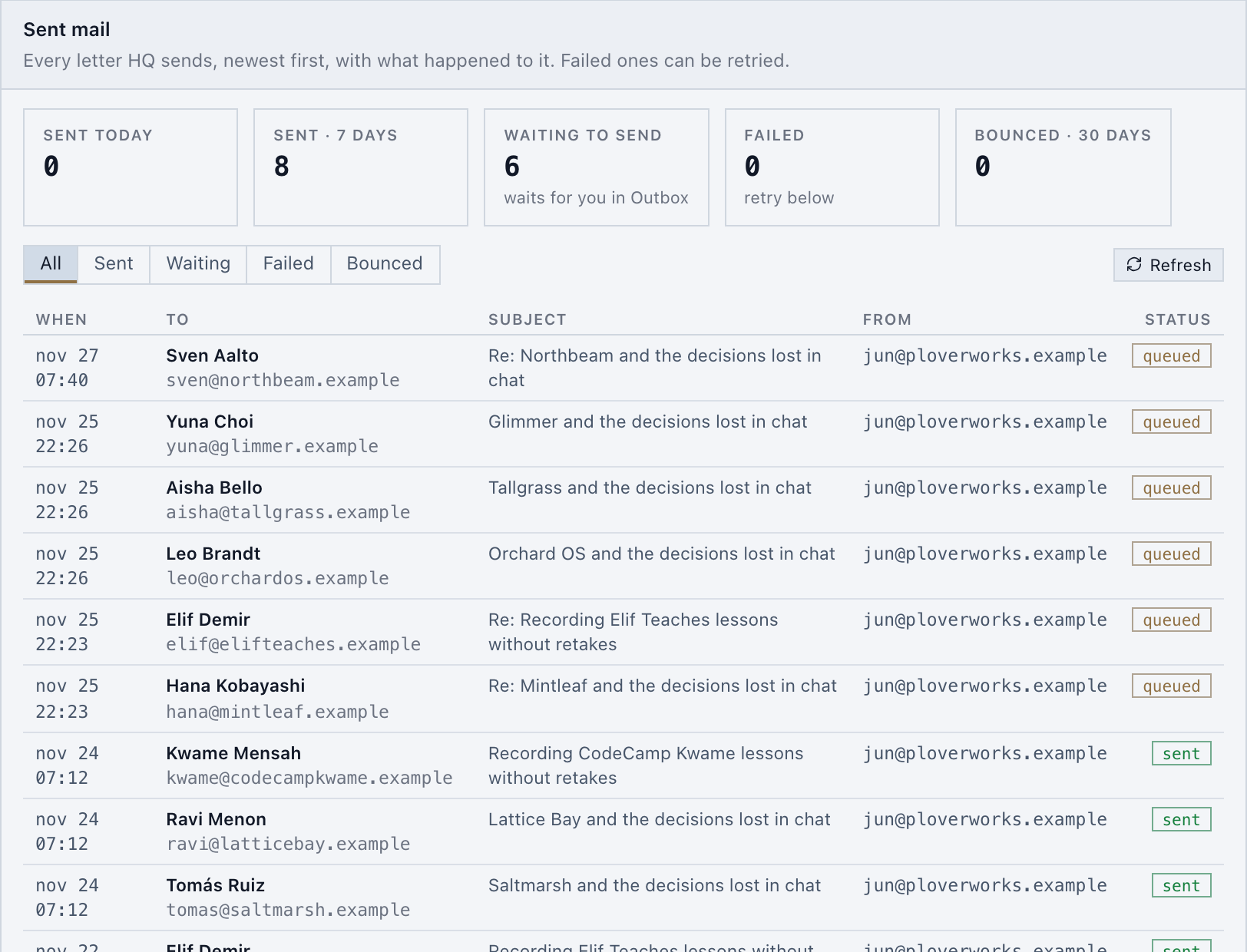
Everything that has gone out — with its status, the account it left from, and a Retry button for anything that failed — is at the bottom of Settings → Email:
Replies land in HQ's Inbox once mail for that address is routed back into HQ, and a reply stops that person's sequence the moment it arrives.
Other providers
Same form, different boxes. The provider picker fills these in and prints each one's own steps:
| Provider | Server | Port | Username | Password |
|---|---|---|---|---|
| Gmail (personal) | smtp.gmail.com |
587 STARTTLS | the full address | 16-letter app password |
| Outlook / Microsoft 365 | smtp.office365.com |
587 STARTTLS | the full address | password or app password; needs Authenticated SMTP |
| iCloud Mail | smtp.mail.me.com |
587 STARTTLS | the iCloud address | app-specific password |
| Fastmail | smtp.fastmail.com |
465 TLS | the full address | app password with SMTP access |
| Naver | smtp.naver.com |
587 STARTTLS | the Naver ID, without @naver.com |
password, or app password with 2-step login |
| Zoho | smtp.zoho.com |
465 TLS | the full address | app-specific password |
| Resend | smtp.resend.com |
465 TLS | the word resend |
API key (re_…) |
| Postmark | smtp.postmarkapp.com |
587 STARTTLS | the Server API token | the same token |
| SendGrid | smtp.sendgrid.net |
587 STARTTLS | the word apikey |
API key (SG.…) |
| Mailgun | smtp.mailgun.org |
587 STARTTLS | the domain's SMTP login | SMTP password |
| Amazon SES | email-smtp.<region>.amazonaws.com |
587 STARTTLS | the SES SMTP username | the SES SMTP password |
For a sequence that goes to people who have never heard from you, a sending service (Resend, Postmark, SES) is the steadier choice: it signs mail for your domain and tells you about bounces. A mailbox you also read mail in is the better choice for replies, because the thread stays where you expect it.